The Magic of Polaroids
A completely new-old way of showing off with your memories.
Bring the Magic to Your Website
Create
beautiful
interactive
Polaroid galleries
with Rife Pro
v.3.1.0
As of October 2026, we’ve added a new type of album presentation.
New album style in Rife Pro
Grids are nice. Polaroids are fun.
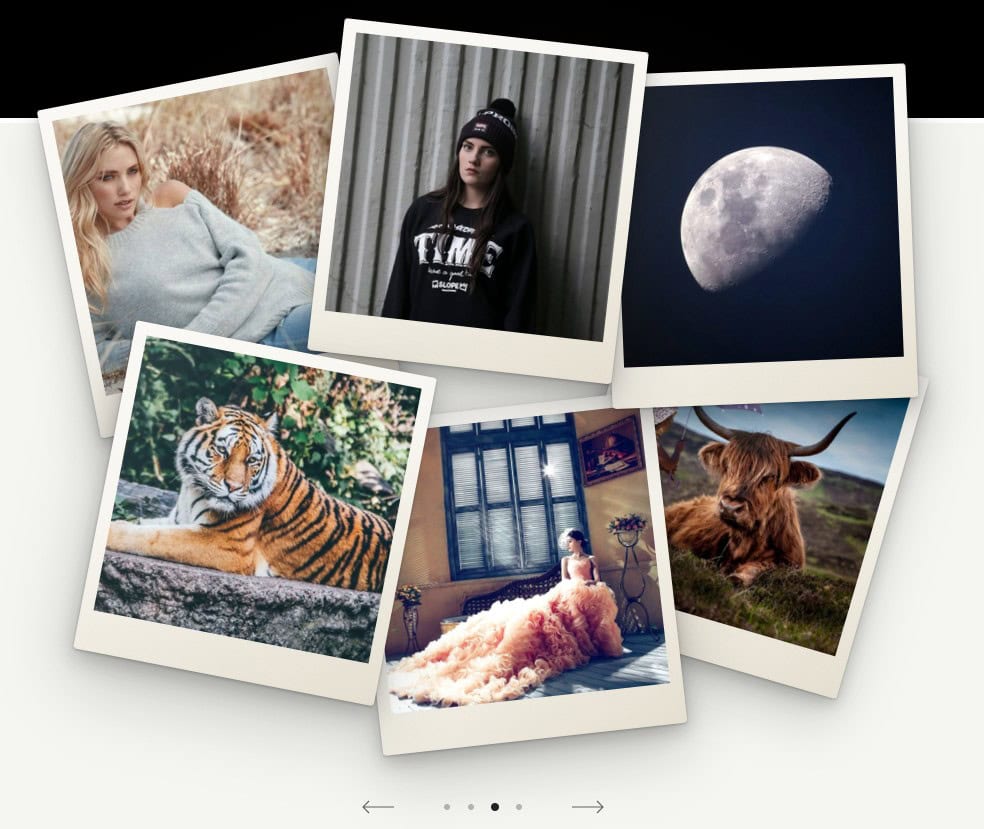
Polaroids is a brand-new album style in Rife Pro. Photos land on the table in paper frames – slightly crooked, overlapping, each with its own shadow – and get swept away when the next set arrives. No plugins, no code, no fuss.
Works straight ‘out of the box’
Turn any album into Polaroids in 3 clicks.
-
Albums Mountain trip Summer by the sea Edit Zoe’s birthday1
Open an album – a new one or one you already have.
-
Show media in Bricks Slider Scroller Polaroids2
In Album media, set Show media in to Polaroids.
-
Save3
Save. That’s it – your photos are already flying.
Everything else comes with sensible defaults, so you can stop right here.
Like to tweak things? Read on!
17 settings, zero code
Make the table yours.
All settings live in the album’s Album media tab, right below the style picker – and each one shows up only when it makes sense.
Sets & order
Photos per set
1–8 default 5
How many prints land at once. Five feels just right, eight is the limit – any more and it’s a pile, not a composition. Every count has its own hand-arranged layout, so photos never end up huddled in one corner.
Photos per set on phones
1–6 default 3 screens under 700 px
A phone is not a coffee table, so it gets its own count. The table turns portrait and sizes itself to the screen, so the whole set is always in view. Three is the sweet spot, six is for big phones and brave hearts.
The whole album or a teaser
Enable default Disable
Forty photos? They’re split into sets with navigation in between. Switch it off and just one set lands – a teaser instead of the full holiday slideshow.
Shuffle or story
Random, on every visit default Album order
Random reshuffles the table on every visit – even on cached pages, because the draw happens in the browser. Album order is for photos that tell a story.
Throw & sweep
Three ways to throw
Dropped from above, straight down default Thrown from the bottom right corner Thrown from above, at an angle
Dropped from above with a tiny bounce, slid across the table from the corner like prints passed to friends, or the classic toss from the hand. Pick a personality.
Spin control
0–720° default 160° corner throw only
How far a photo spins while sliding in from the corner. 160° is smooth, 720° is for show-offs, 0 means no spin. Each photo gets up to 20% more or less, so they never spin in sync.
One by one or all at once
One by one default All at once
One by one, from the bottom of the pile up – or the whole set in one go, just milliseconds apart, because nobody throws perfectly evenly.
The sweep
Swept to the left default Swept to the right Fade out
A hand sweeps the set off the table: the nearest photos go first, the rest speed up and bunch together. Going back? The sweep reverses. Or simply let them fade out.
Navigation & clicks
Navigation style
Minimal default Paper Side arrows
Minimal: thin arrows and simple dots, no background – it takes your text color and turns light on dark sections. Paper: a strip of the same paper as the frames, with tiny polaroids for dots. Side arrows: just two arrows next to the photos, nothing below.
Icons color
empty = automatic default any color
Arrows and set markers, in every navigation style. Leave it empty and Rife picks for you: Minimal and Side arrows take your text color, Paper goes with dark ink. Or go on-brand and pick your own.
Strip color
empty = paper default any color transparent = no strip Paper style only
The same paper as the frames, or any color you like. Make it fully transparent and the strip disappears together with its shadow – only the icons stay.
Click to pick up
Pick up the photo default Open theme lightbox Nothing
A clicked photo straightens up and lifts almost full screen – browse the set with arrows, keys or a swipe, put it back with Esc. Prefer the classic? Open the Rife lightbox. Or keep it purely decorative.
Swipe
Enable default Disable
Swipe left for the next set, right for the previous one – with a finger or a mouse. Vertical scrolling stays untouched, so nobody changes a set by accident.
Frame & layout
A note on the frame
Caption default Title Description Nothing
That wide bottom margin begs for a note. Show the caption, title or description from the Media Library – or nothing, if the photos speak for themselves.
Table width
400–1600 px default 900 px
The table has no edges, just a soft glow, so photos may stick out a little – that’s the charm. Images load at a size that fits the table; the big file comes only when someone picks a photo up.
Fit to the screen
Enable default Disable
On a 1280×800 laptop a big table could get cut off at the bottom. Not here: the table shrinks just enough for the whole set and its navigation to fit the window. Photos get smaller, the layout stays the same.
Album text
Above the photos Below the photos default Do not display it
The album’s title and content go above the photos, below them, or nowhere at all.
The little things
Details that just work.
- Lands in view The first set waits until the gallery scrolls into view.
- No reloading Each photo loads once; the next and previous sets get ready in the background.
- Never the same twice Positions, angles and layers get a touch of randomness on every deal.
- Prints that feel real Paper grain, a soft gloss and shadows that grow with every layer.
- Phone turned sideways? The table rearranges itself and keeps your place in the album.
- Accessible Real buttons, keyboard support and a gentle fade for reduced motion.
Works great with Elementor
Polaroids, anywhere.
Put an album on any page, post or Elementor section with one shortcode.
[a13fe-polaroids id="123"]It starts from the album’s settings – even if the album itself uses a different style – and parameters let you override them one by one. The table has no background of its own, so your section background, be it a color, an image or a video, shows right through.
Show all parametersHide parameters
| Parameter | Values | Setting |
|---|---|---|
count | 1–8 | Photos in one set |
count_mobile | 1–6 | Photos in one set on phones |
sets | on off | Show the whole album |
pick | random first | Order of photos |
throw | drop corner classic | Throwing a set on the table |
corner_spin | 0–720 | Spin of a corner throw, in degrees |
throw_mode | one together | One by one or all at once |
clear | sweep-left sweep-right fade | Taking a set off the table |
nav_style | minimal paper sides | Navigation style |
nav_color | #hex, rgb(a), hsl(a) | Color of arrows and dots |
nav_bg | #hex, rgb(a), hsl(a), transparent | Color of the paper strip |
caption | caption title description off | Text on the frame |
click | lift lightbox off | Click on a photo |
swipe | on off | Swipe navigation |
max_width | 300–3000 | Max width of the table, in px |
fit | on off | Fit to the screen |
tone | auto dark light | Shortcode only: background tone, detected automatically – set it by hand over an image or a video |
class | your classes | Shortcode only: extra CSS class |
For example:
[a13fe-polaroids id="123" count="6" throw="corner" corner_spin="300" throw_mode="together" clear="fade" nav_style="paper" tone="dark"]Six photos slide in from the corner all at once with a proper spin, fade out on the way, and a paper strip takes care of navigation – over a dark section background.
Only published albums without a password are shown.
Enough reading! Every gallery on this page is Polaroids, each with different settings. Swipe it, click it, pick a photo up – you can’t break it.